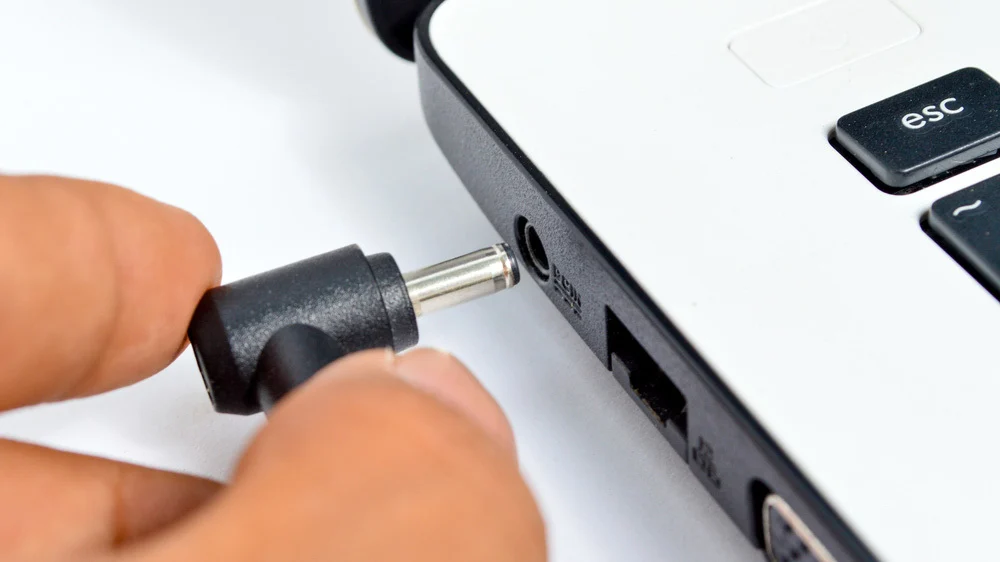
Charging problems can come from the wall outlet, cable, adapter, charging port, battery, software, or internal power circuitry. Randomly forcing connectors or testing unknown chargers can create additional damage.
Safe troubleshooting begins with simple external checks.
Inspect the Wall Outlet
Test another device in the same outlet.
Try a different outlet without using a damaged extension cord.
If the charger works elsewhere, the original outlet or power strip may be faulty.
Check the Charger
Inspect the cable for cuts, exposed wires, bent sections, and overheating marks.
Look for damage near the adapter block and connector.
Stop using a charger that smells burnt or becomes unusually hot.
Clear laptop charging guidance can help users recognize common adapter and connector problems.
Use the Correct Wattage
A charger with insufficient wattage may charge slowly or fail during Heavy use.
Use the original adapter or a compatible replacement that meets the manufacturer’s requirements.
Matching the connector shape alone is not enough.
Examine the Charging Port
The plug should fit securely.
Do not force the connector or hold it at an extreme angle.
A loose port may need professional repair.
Packed dust can sometimes prevent full connection, but avoid inserting metal tools.
Restart the laptop
A temporary power-management error may stop charging.
Save work and restart while the charger is connected.
Check the battery icon after startup.
Shut Down and Charge
Turn the laptop off and leave it connected for 20 to 30 minutes.
Try powering it on afterward.
If it charges only while off, the adapter may be underpowered or software may be consuming too much energy.
Check Battery Settings
Some laptops stop charging around 80 percent to protect battery health.
Review smart charging, conservation mode, and battery preservation settings.
This may be normal behavior rather than a fault.
Update Power Drivers
Install operating system updates and approved manufacturer drivers.
Windows users may reinstall battery-related drivers through Device Manager.
Restart after changes.
Trusted computer maintenance advice reduces the risk of using incorrect drivers.
Remove and Reinsert a Removable Battery
Shut down and disconnect the charger.
Remove the battery only when the model is designed for it.
Inspect for swelling or damage.
Reinsert it securely and test again.
Check for Overheating
A hot battery may pause charging for safety.
Move the laptop to a cool, ventilated area.
Close demanding applications and allow the device to cool.
Do not place it in a refrigerator or against ice.
Disconnect External Devices
USB drives, phones, external disks, and accessories can draw power.
Disconnect them and test charging again.
A weak charger may work after the additional load is removed.
Pause Heavy Processing
Gaming, video editing, and AI processing can use more power than the charger supplies.
Close demanding programs.
Some AI computing workloads place sustained demand on the processor and graphics system, slowing visible charging.
Check Battery Health
Generate a battery report or review battery condition settings.
A severely worn battery may charge poorly or shut down unexpectedly.
Replacement may be necessary.
Watch for Swelling
A swollen battery can separate the case, raise the keyboard, or distort the touchpad.
Stop charging and using the laptop.
Do not puncture or press the battery.
Seek professional replacement immediately.
Reset Power Management
Some manufacturers provide a battery reset button or special procedure.
Follow the official instructions for the exact model.
Do not use random reset methods from unrelated laptops.
Test Another Approved Charger
Borrow or test a known-good compatible charger.
If charging works, the original adapter is likely faulty.
If it does not, the port, battery, or motherboard may be responsible.
Back Up Important Files
Repeated power loss can damage open files.
Save important data before the battery stops working completely.
Organized backup storage planning protects work during hardware repair.
Do Not Repair Adapters at Home
Charger blocks contain high-voltage components.
Do not open or tape over severe damage.
Replace the adapter with a safe, approved model.
Consider Port Repair
A charging port that moves, sparks, or works only at one angle needs inspection.
Continued pressure can damage the motherboard.
Professional repair may involve replacing the port or power board.
Final Thoughts
Laptop charging problems should be tested safely. Check the outlet, adapter, cable, port, battery settings, temperature, and software before assuming major hardware failure.
Use only the correct charger and never force a loose connector.
Swelling, sparks, burning smells, and exposed wires require immediate action. Back up important files and arrange professional service when external troubleshooting does not solve the issue.